Site access
You can configure various site access options in the Access tab.
Public Links
Control Over Public File Link Creation: Access controls for creating publicly available file sharing links. Administrators can enforce policies to provide link creation that requires user authentication.
Mobile Access
You can restrict or allow mobile access for your entire MFT site. Turn on this feature to let your users access your MFT site via mobile web browsers and native mobile apps for iOS and Android.
Corporate Login
Turning on this feature adds a corporate login button to the front page so users can sign in with their corporate identity provider. You can customize the button text in the Button Text field. Use the Set as Default option in the SAML configuration section to select which IDP is used for corporate login.
Single Sign-On (SAML) Configuration
Configure SAML SSO for the site. You can export the metadata XML file to register this service provider with your identity provider.
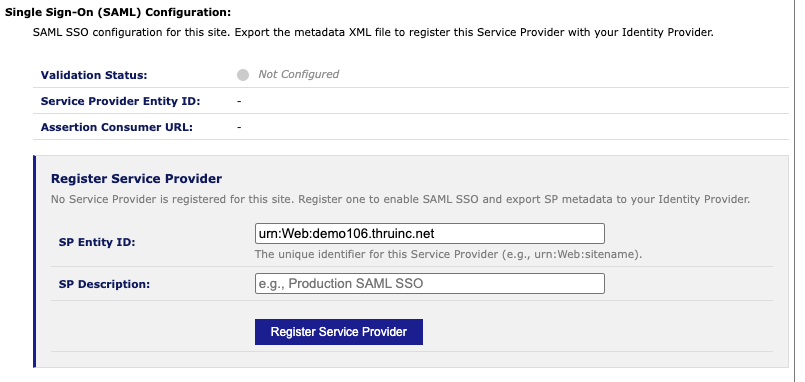
When you register a service provider for the first time, the following options are available:
-
Validation Status - The status of the configured identity provider
-
Service Provider Entity ID - The unique identifier for this service provider, for example
urn:Web:sitename -
Assertion Consumer URL - The endpoint on this service provider that receives and processes SAML assertions (authentication responses) from the identity provider
-
Register Service Provider - Register a service provider to enable SAML SSO and export SP metadata to your identity provider
- SP Entity ID - The unique identifer for this service provider. You can use the default ID or enter a custom one.
- SP Description - Enter a description to easily identify this service provider
After registering one or more service providers, they are displayed in a list. You can set one as the default, which is used for the Corporate Login button.
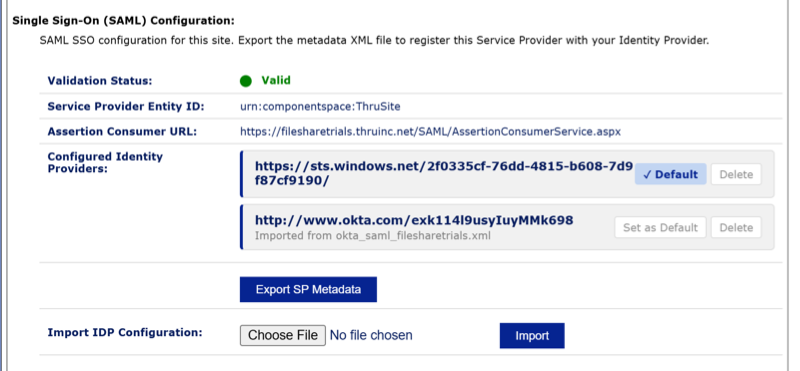
- Configured Identity Providers - Lists all configured identity providers. You can select a default provider from this list and export the SP metadata as an XML file to register this service provider with your identity provider.
- Import IDP Configuration - Select a metadata XML file to import the identity provider issuer URI, SSO service URL, and public certificate
Single Sign-On (SSO) User Access
There are two SSO User Access settings:
Allow standard login/password access for SSO users
This setting applies to users accessing the portal and email plug-in through domain authentication.
You can provide SSO users with standard login/password access (users configured from the corporate directory). This determines whether these users can access the MFT service with their standard login/password.
If you turn off the option, the user will log into their Windows account and use the SSO method.
Enabling standard login/password access lets users sign in outside the corporate network.
An administrator can override this setting for individual users from the Administration/Users/Access tab.
Allow auto login for SSO users
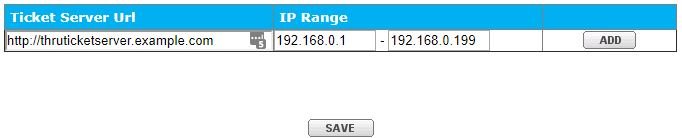
If you are using MFT Ticket Server SSO, you can enable internal users to download files from a MFT download link sent in emails (Dropbox received email or file sent email).
To enable this feature:
-
Turn on the Allow auto login for SSO users checkbox.
-
Enter the MFT Ticket Server URL and the allowed IP address range.
-
Specify http:// or https:// at the beginning of the Ticket Server URL.
-
Click Add.