Create a Table Service
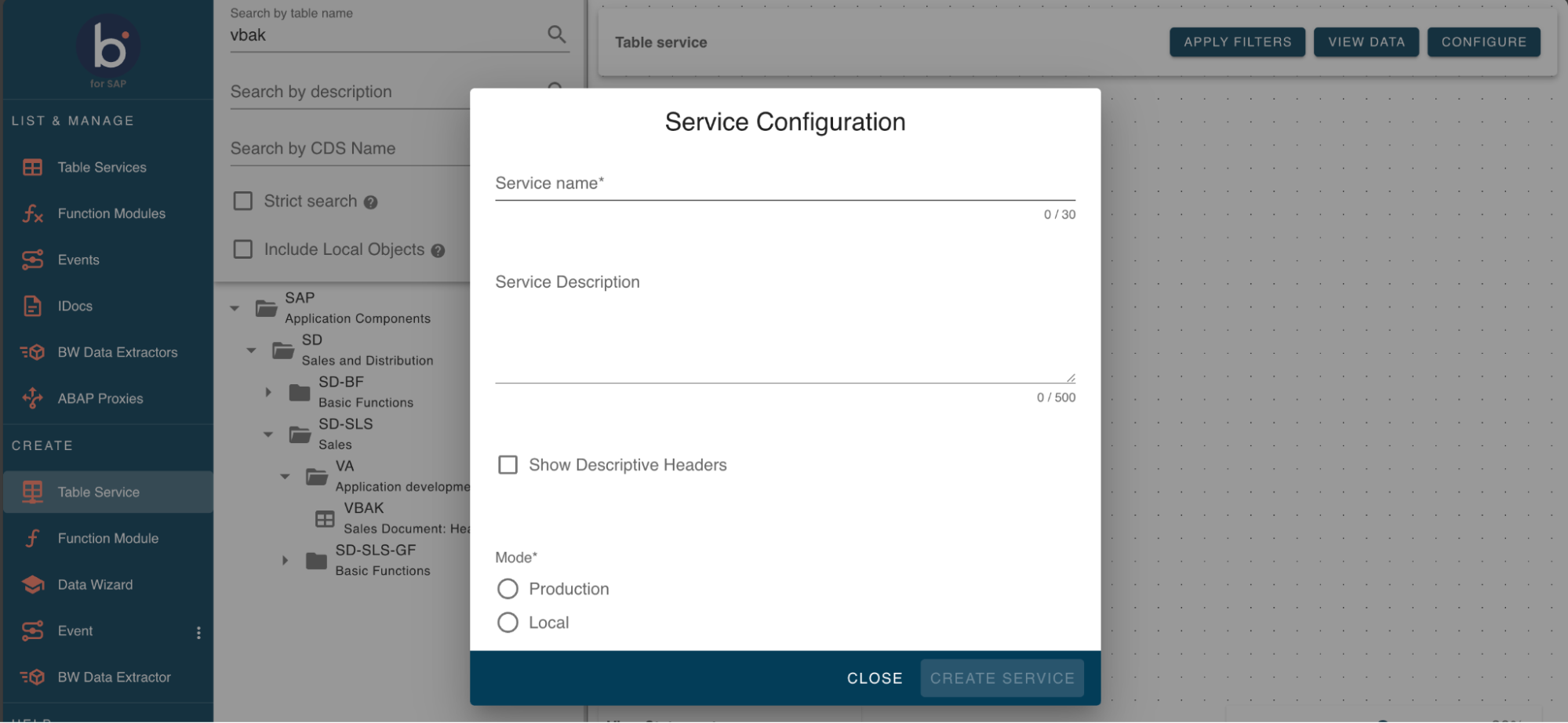
Click the Configure Service button in the upper right-hand corner. In the pop-up window, fill out the information needed to create the service, as described below.
-
Service name: To create a service, enter a service name.
-
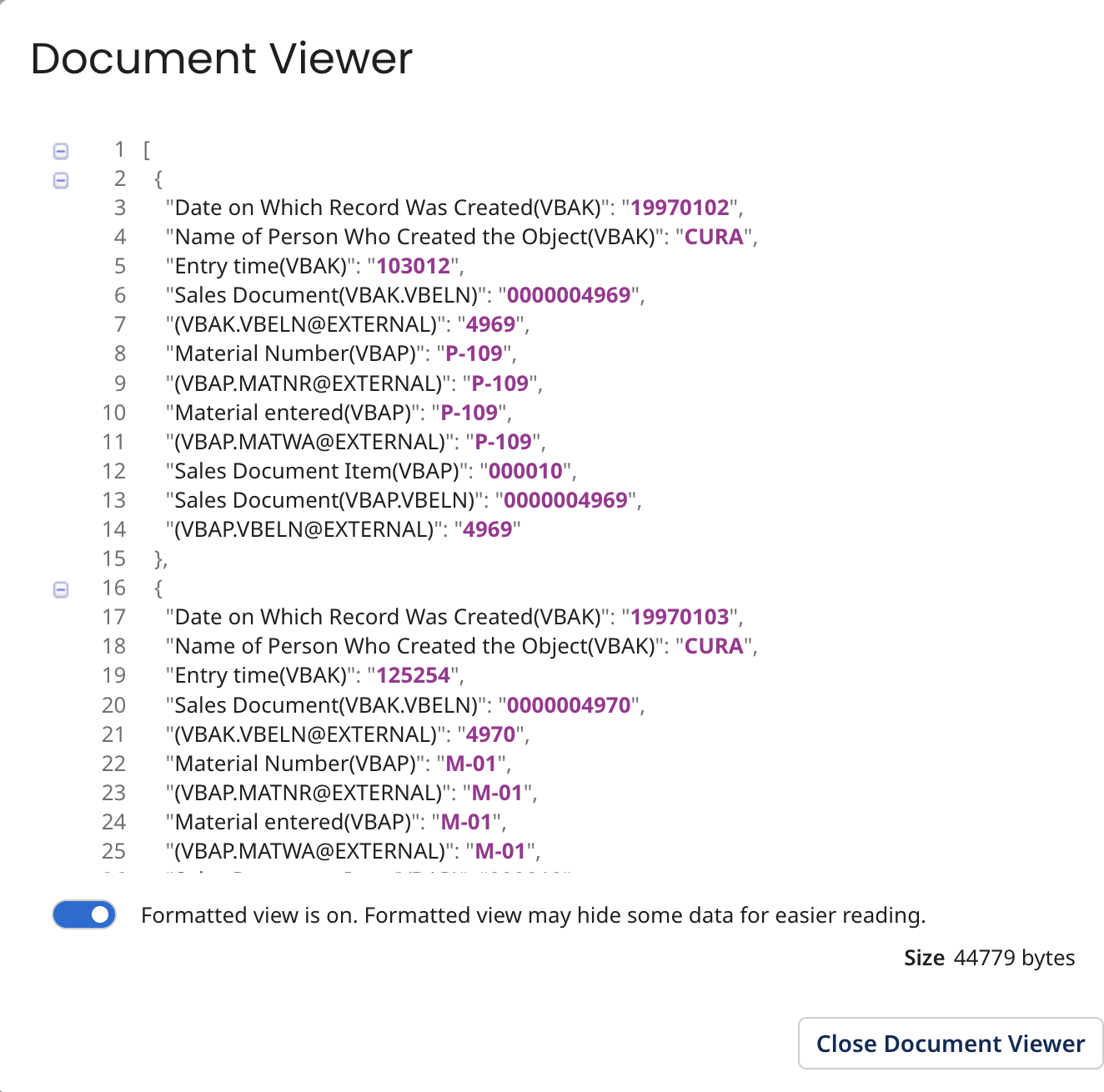
Show Descriptive Headers: Select this checkbox if you want to replace the default SAP column headers with descriptive titles. The descriptive headers will also appear in the process payload output.
-
Mode: This indicates if the service created is transportable. By selecting Production, the service can be transported. When using this option you must select a transport for the service before it can be created. On the other hand, by selecting Local, the service created can not be transported, and therefore, no transport can be selected.
-
Transport: This is the transport that will be assigned to the service. You can promote a table from Local to Production.
-
Authorization: You will configure the authorization object for the service with the corresponding authorization fields and values. Press the drop-down menu to choose the authorization object, and then fill out the authorization field's values.
If no authorization objects are assigned, it doesn't check for authorization when calling the service. Thus, it is also possible to configure the service without selecting any authorization objects.
- Test as user: You can test the authorization to check for a specific user by entering a user name. If the user exists and has the correct authorization, a green checkmark will appear.
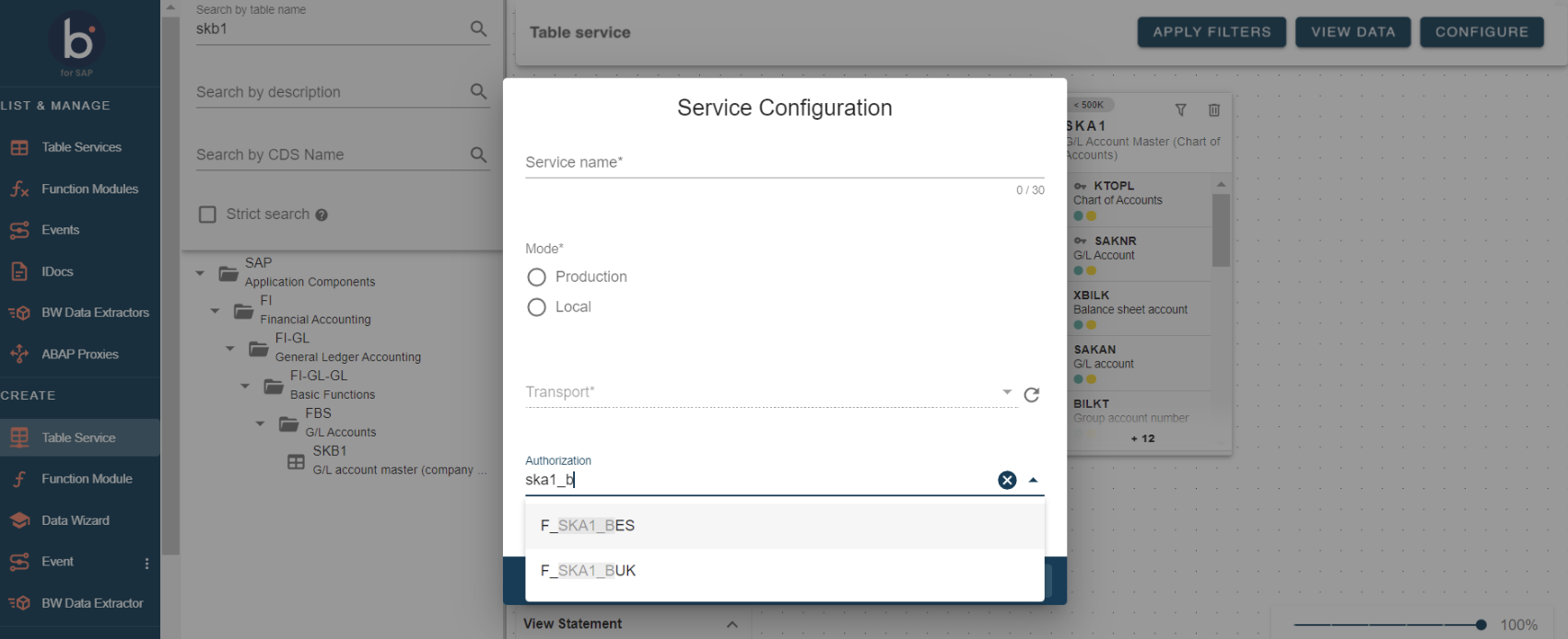
If no user exists and there are no correct authorizations, an error message will appear.
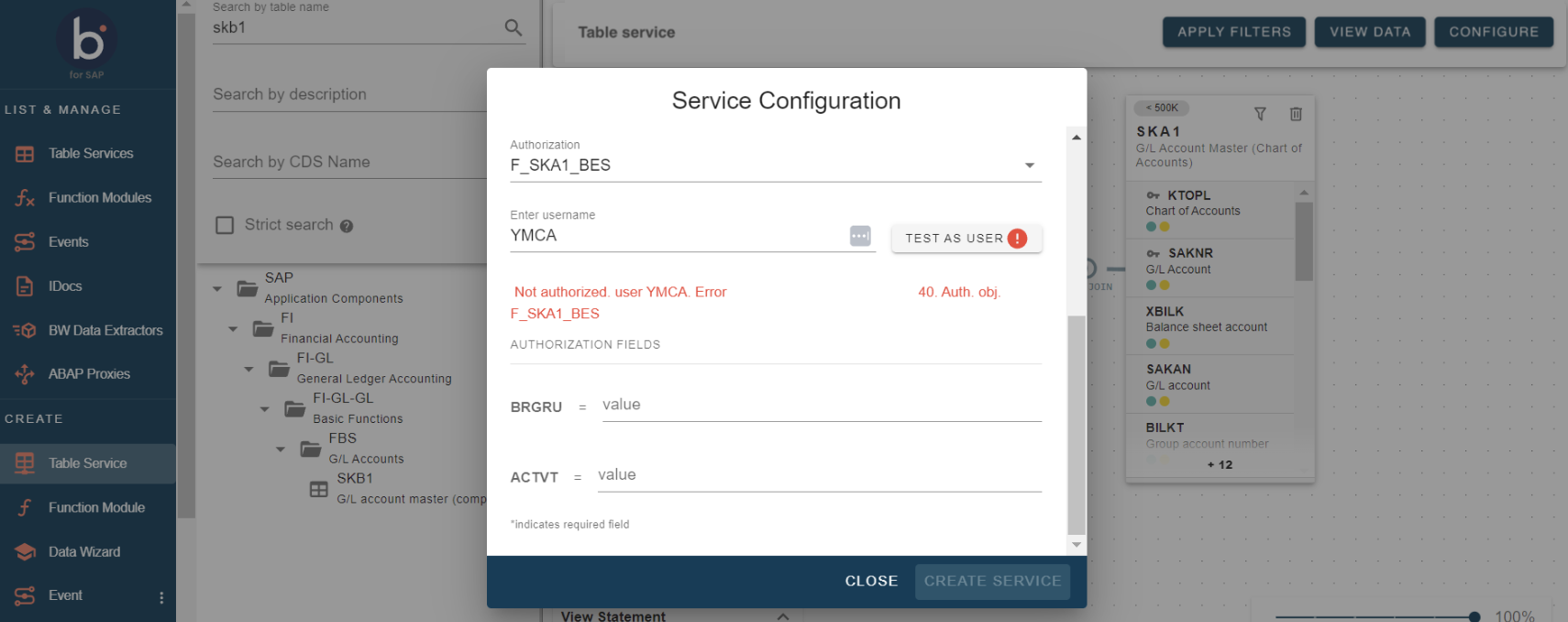
After filling in the above information, click the Create Service button. If the service creation was successful. the following confirmation message will appear: The process successfully created all services. If you want to return to the canvas, click the Close button.
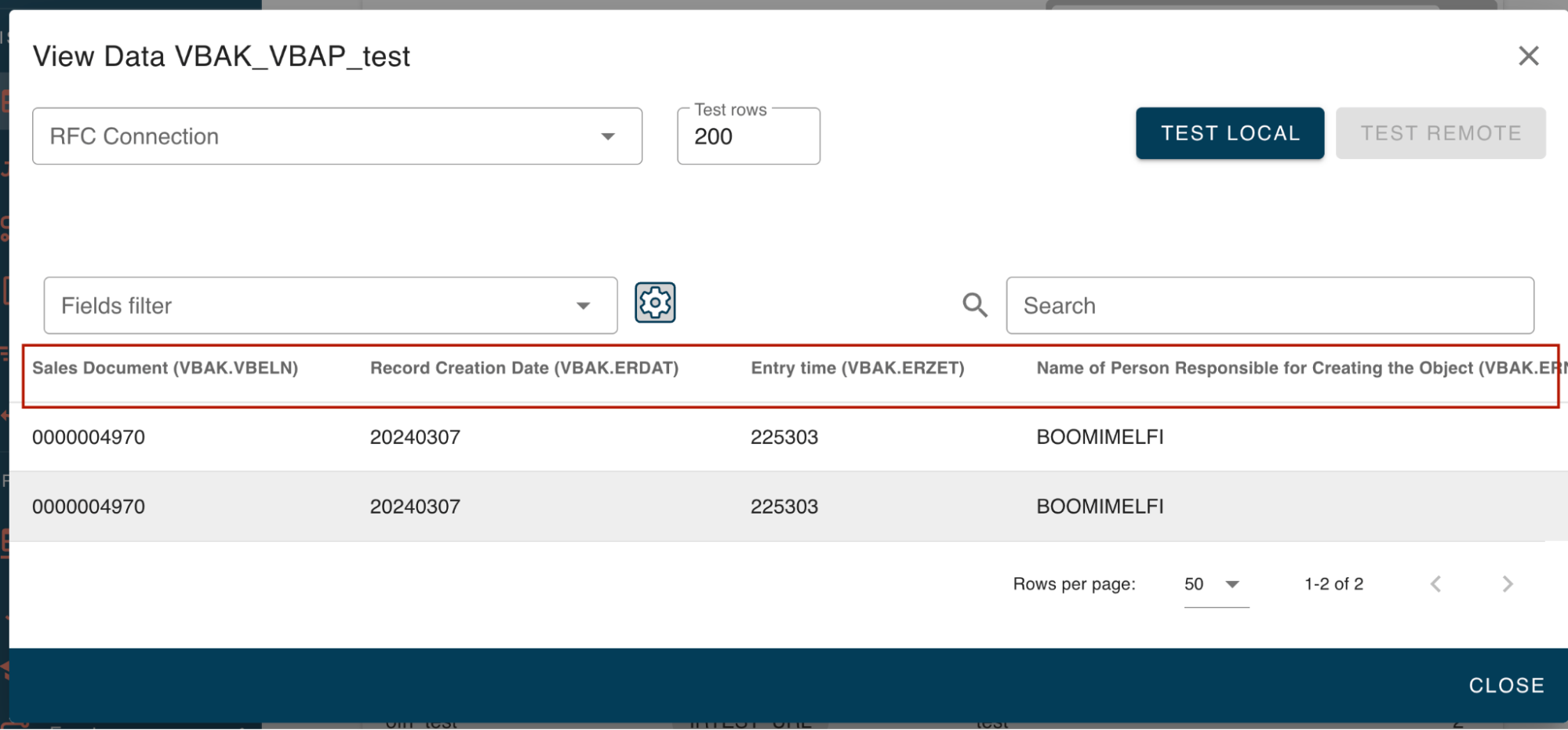
Once you create the service, the system will redirect you to the Table Services page, where you can find the service(s) you just created. You can use the Apply Filters button to pre-filter table data based on your desired criteria before the data is displayed.
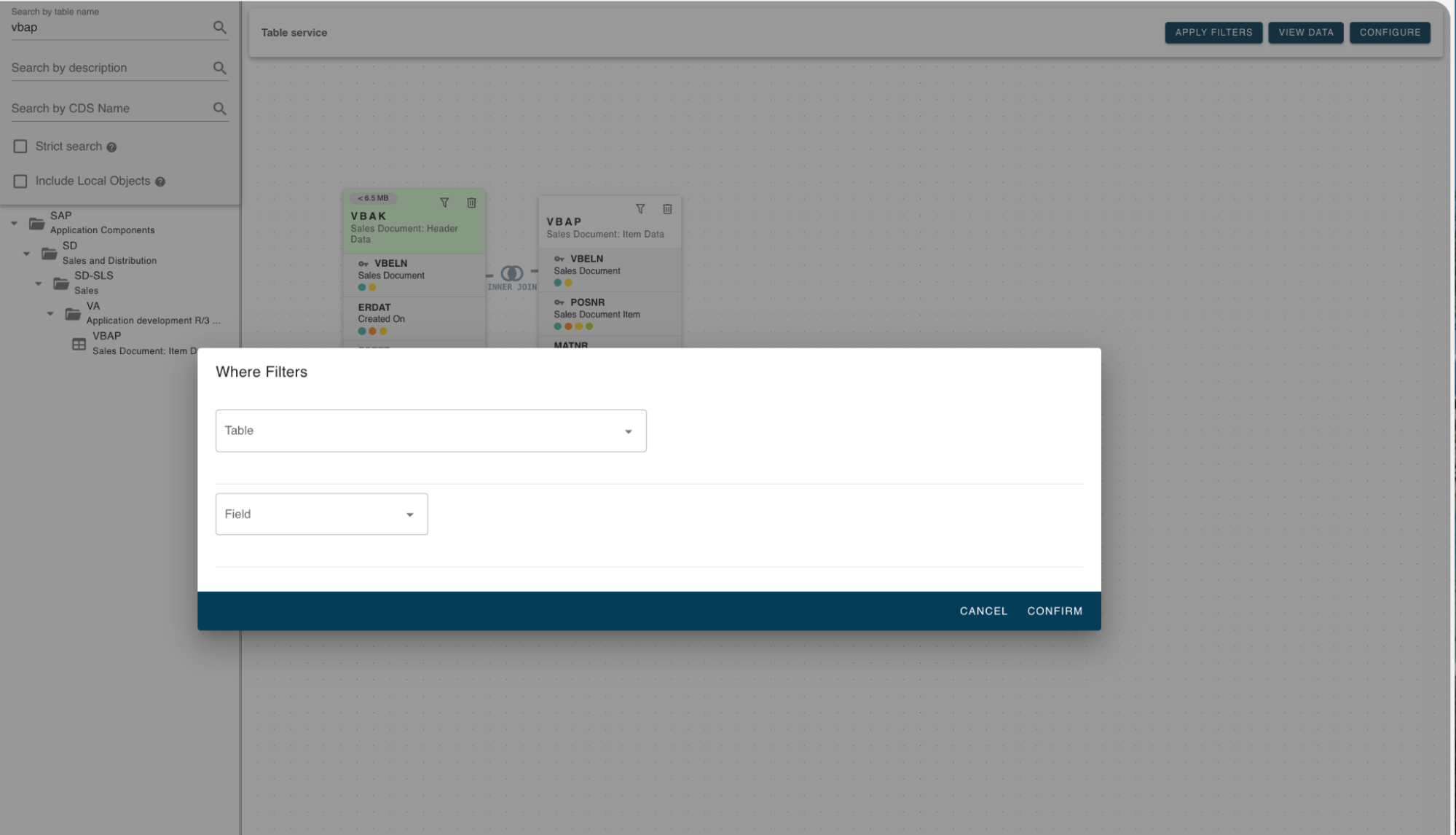
When you click Apply Filters, a drop down box of tables on the canvas appears.
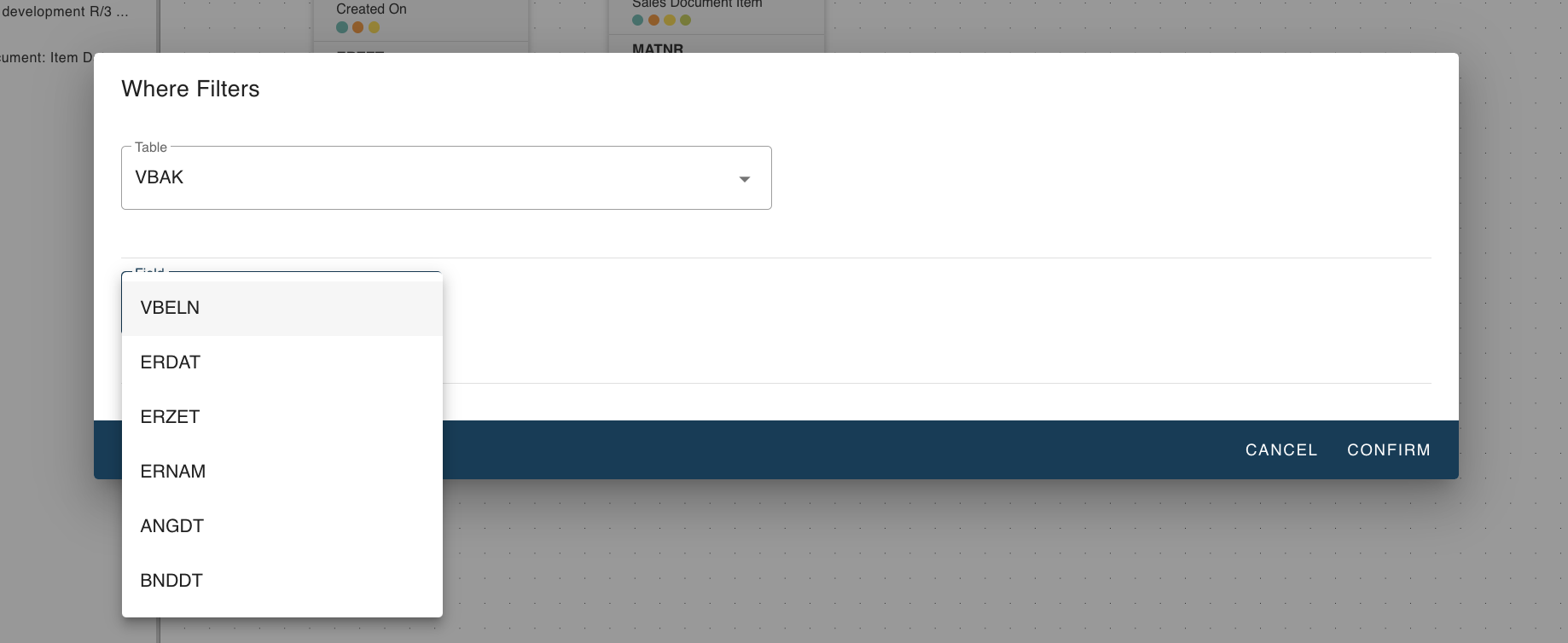
After selecting a table, you can fill in the relevant parameters.
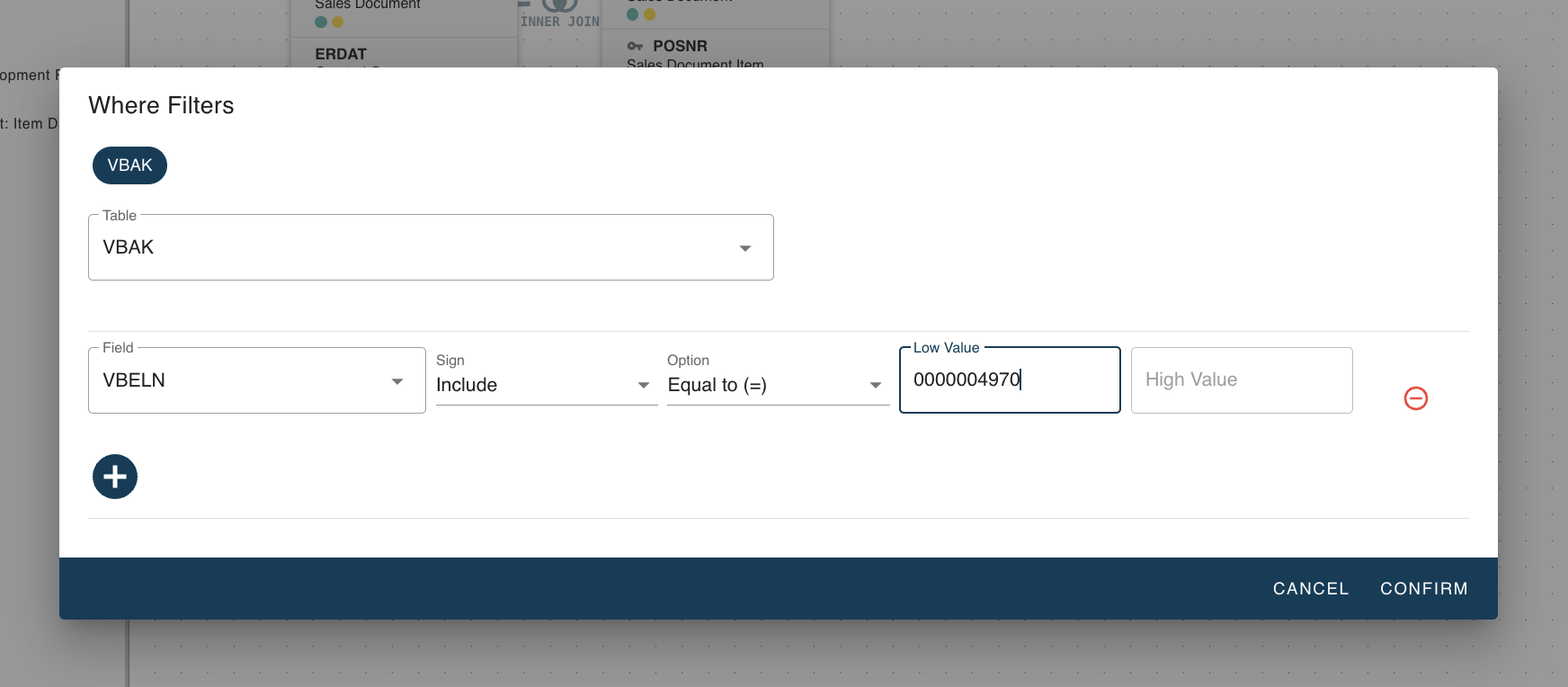
You can have multiple filters active at the same time.
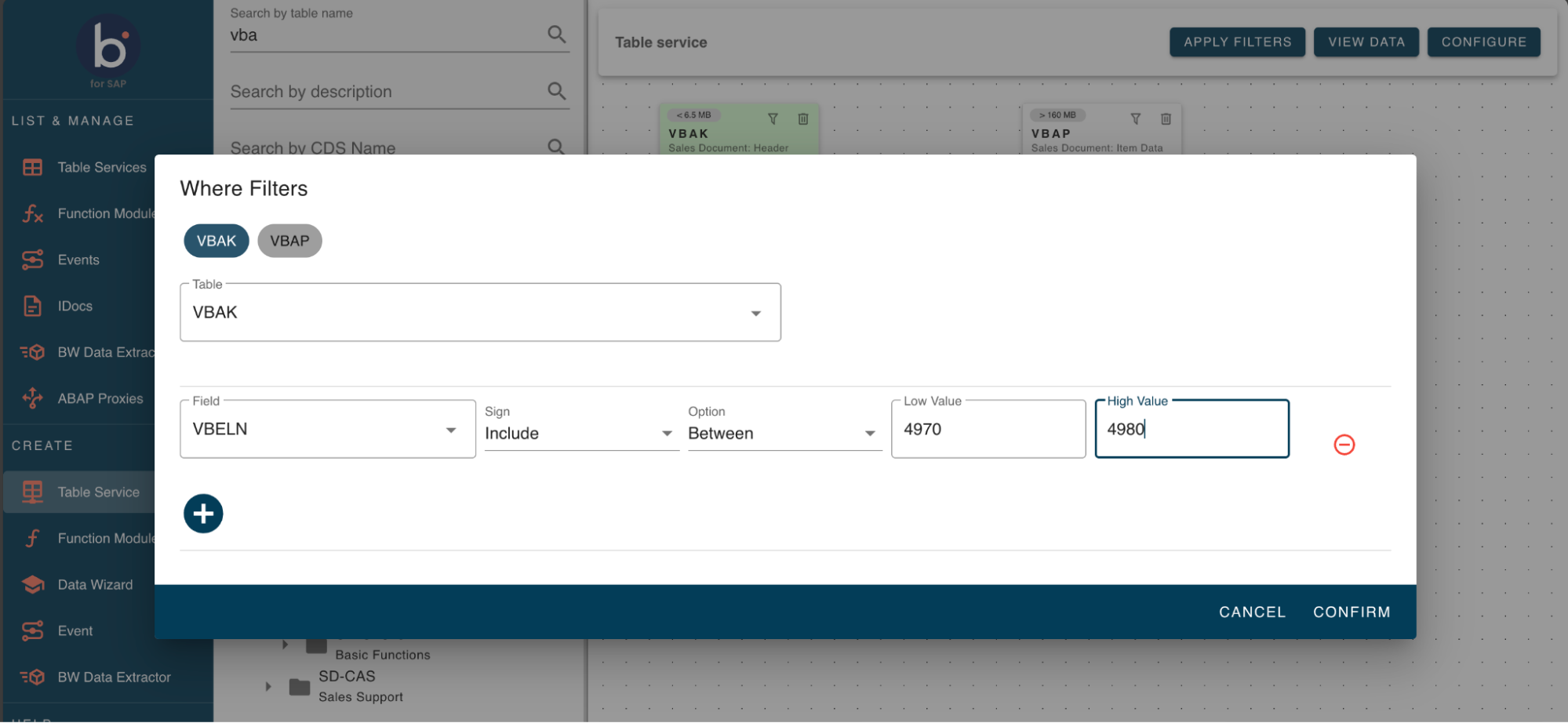
Table Service for CDS views
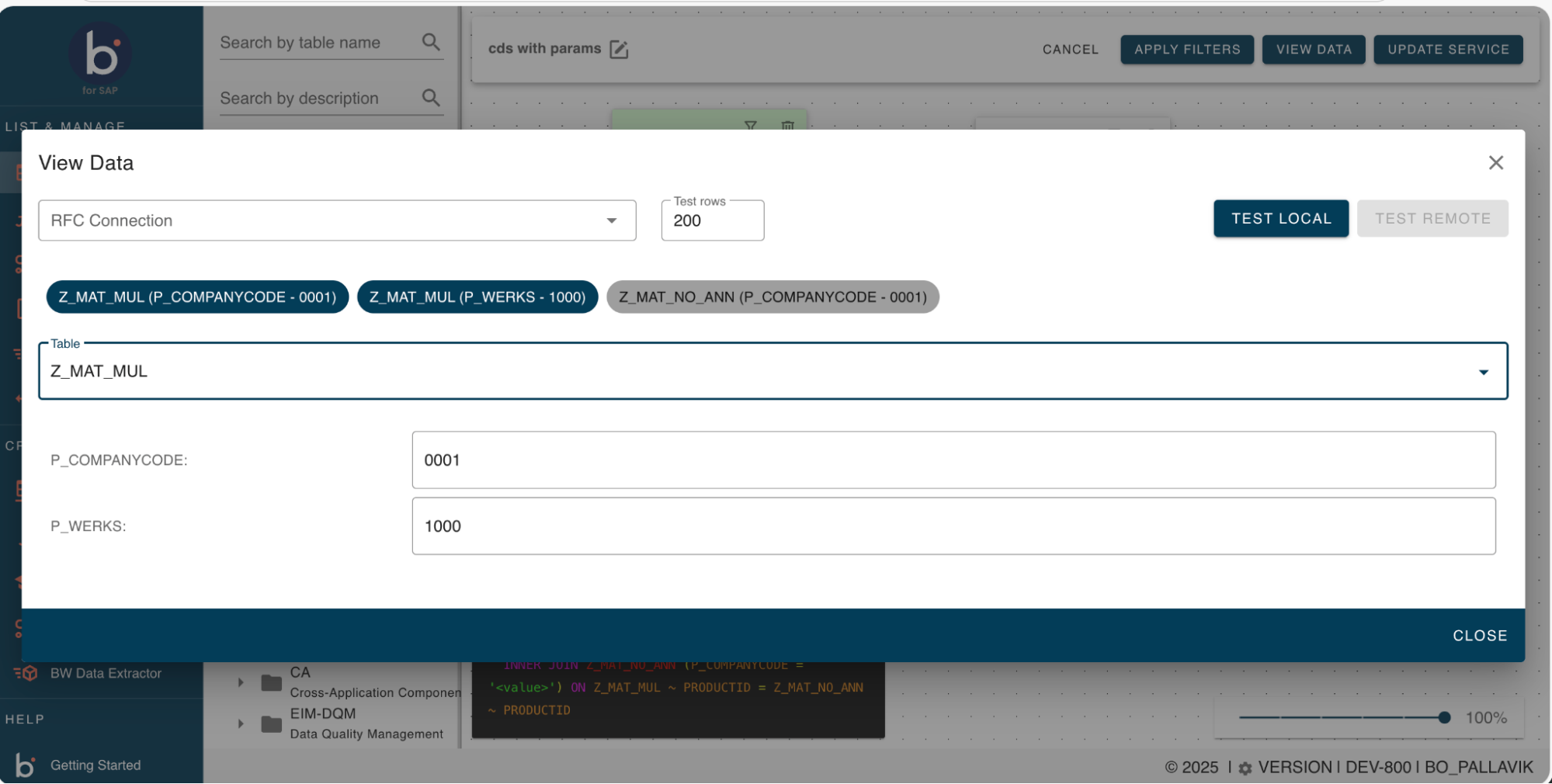
You can create a table service for CDS views with the following mandatory input parameters to display data. Use the Test Local button to view the data after you enter it.