Overview
The User Space portal enables you to browse a library of templatized integrations, configure and customize integrations and data mappings to fit their specific use cases, and run, schedule, install, and monitor those integrations. Use the Switch to... icon in the top-right corner to toggle between light and dark viewing modes. You can also readily access the Spaces help documentation by clicking the Help Documentation icon.
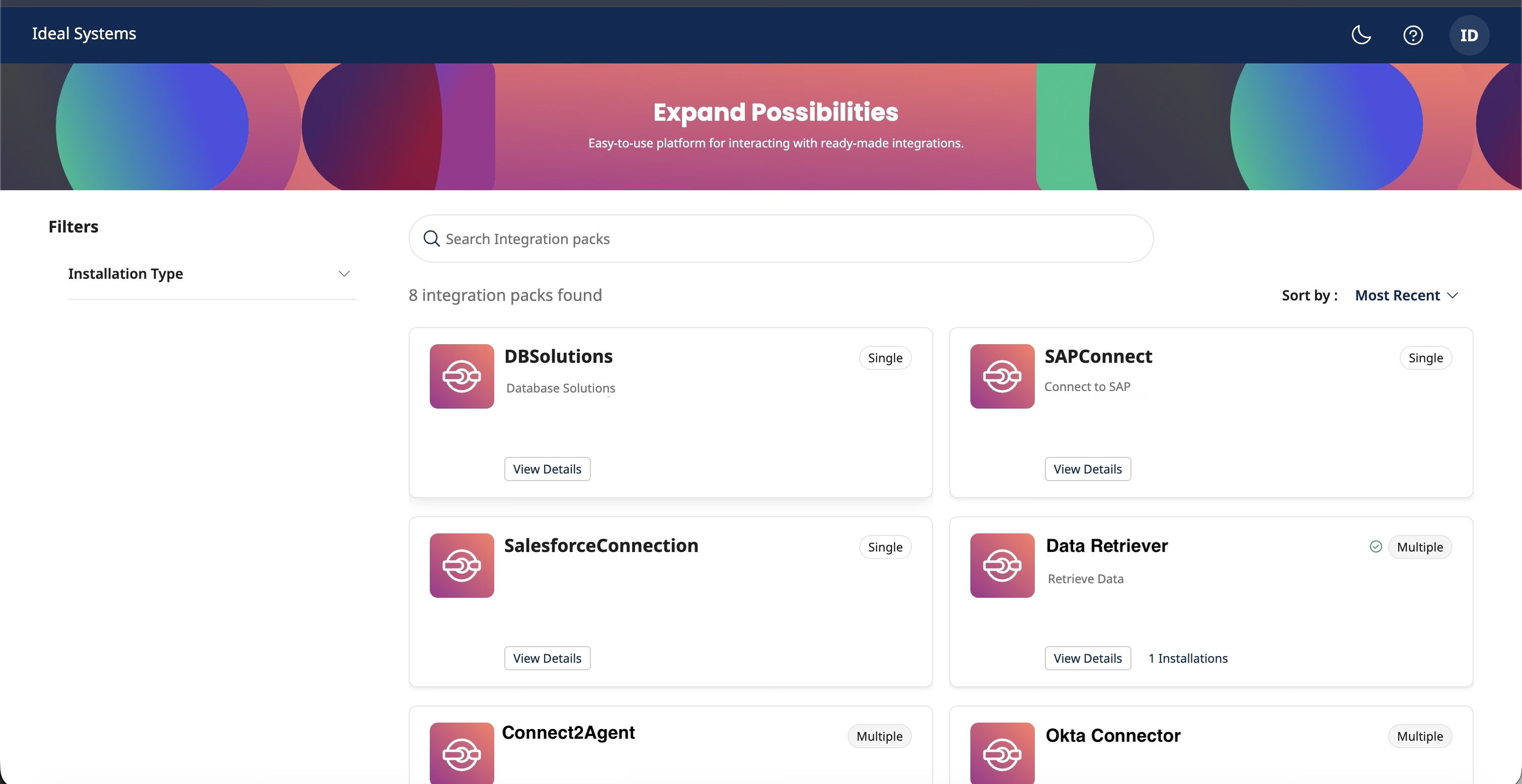
In the User Space, you can:
- View Integration Pack listings
-
Filter Integration Packs by their Categories and Attributes
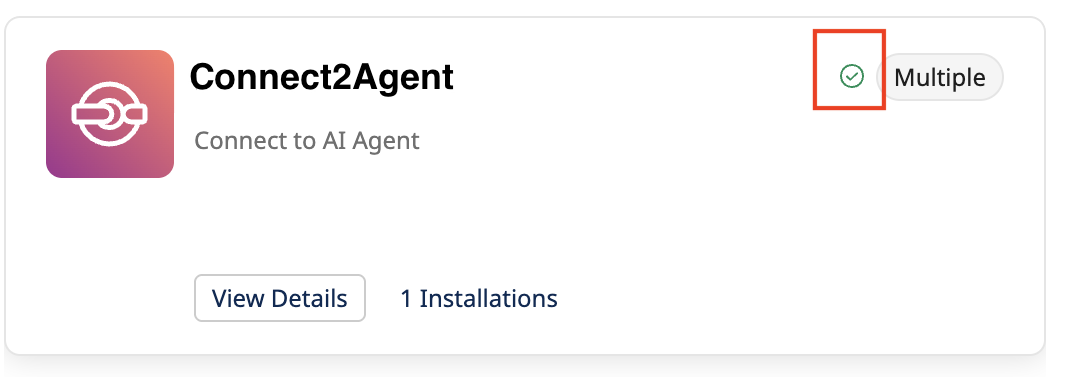
tipLook for the green checkmark to quickly identify integrations that are already installed.
-
- View Details
- Install and Configure Integration
- Add Environments
- Configure Processes and Process Properties
- Configure Data Maps
- Uninstall Integration
- View Installed Instances
- Install and Configure Integration
- Edit Integration
- Schedule Integration
- Run Integration
- View Integration Process Report
Users having accounts with Space privileges can access the Space allocated to them. You can sign in to the Space User portal using the Space URL shared by your admin.
Contact the Space Admin to get the Spaces URL associated with a Space.
Log in to user Space
-
Sign in to the Spaces using the Space URL associated with it. (Eg URL: https://space.boomi.com?guid=e26c1a5a-d3ac-4286-8226-2ec1c)
-
Select an account using which you want to sign into the Space.
The account page displays a list of accounts included in the Account group of the Space. If your Account group has only one child account, you are directly navigated to the Spaces Browse page.
By default, the Select Account page displays a maximum of ten child accounts. If the Space account group includes more than ten accounts, use the search bar to find the account.
-
After you select your account, the listing page displays all integration packs available for your account in the Space.
-
Use the filters on the left pane to conditionally narrow your view and view Integration Packs that match your selected Categories and Attributes.
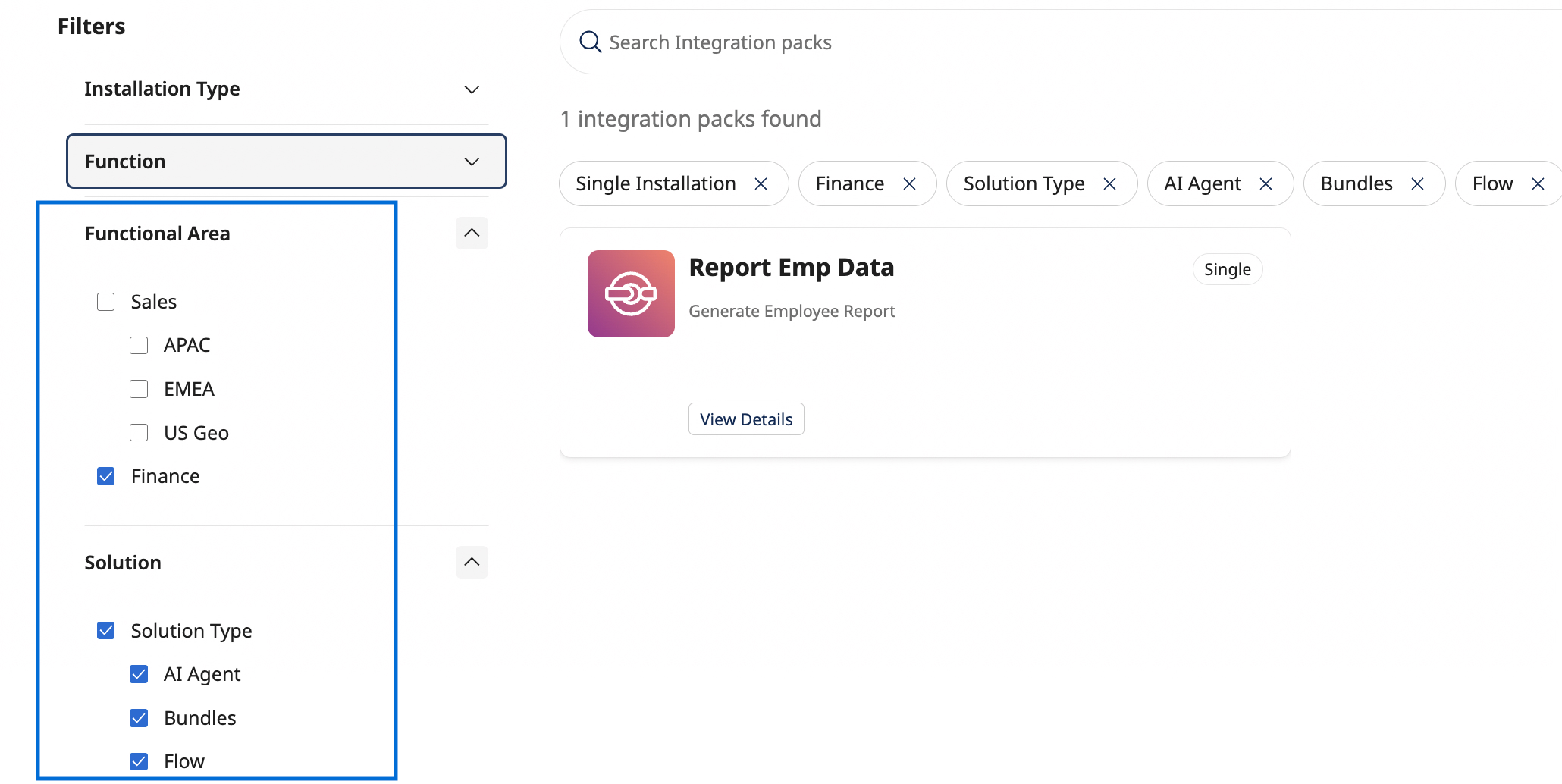
- The Integration Pack listing view displays single-install and multi-install categorizations, by default.
- The filter pane on the left displays Categories and Attributes, as defined by your administrator.
On the listing page, Integration Packs are labeled Multiple for multi-install versions, and Single for single-install versions. You can View Details of the Integration Packs, Install them, and after installation Schedule/Run them, as needed.
The Integration Packs available to you in the User Space portal are determined by the access your Admin has configured in the Admin Space for the relevant account groups.