Data maps
Data map extensions represent the generalized mapping between two object definitions. For more details on Data maps, refer to Data map extensions.
The Data maps editor
The Data maps editor features the following:
- Selector for choosing the Process.
- Selector for choosing the Data Map within the selected process.
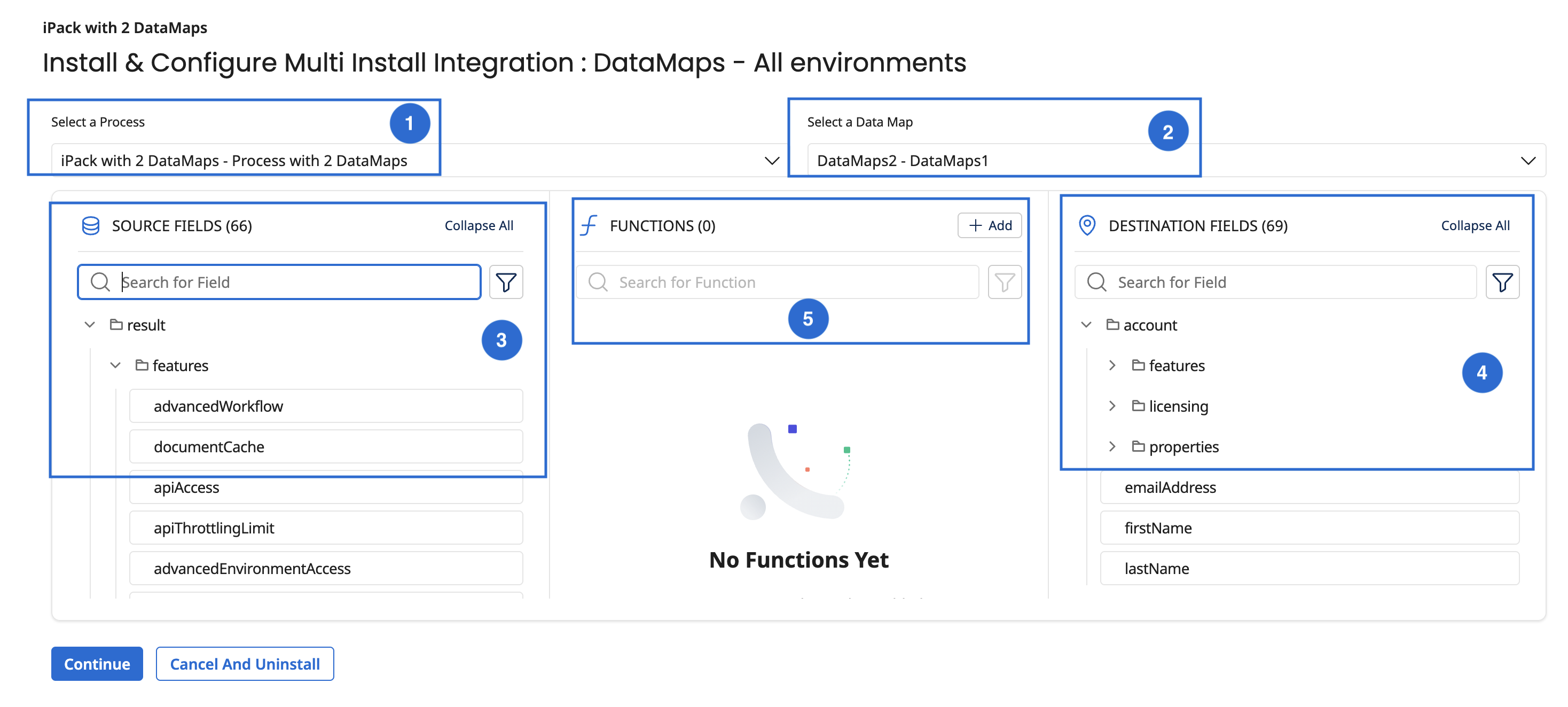
- SOURCE FIELDS: This section displays the set of input fields included as part of the Data map.
- DESTINATION FIELDS: This section displays the set of output fields included as part of the Data map, to which the SOURCE FIELDS can be transformed.
- FUNCTIONS: In this section, you can add the transformation functions for your input. You can currently perform transformation on the following data types:
- String: Includes String operations like trimming, appending, concatenation, case conversion, and so on.
- Numeric: Includes basic arithmetic operations, floor operation, formatting, and so on.
- Date: Includes options to format the date and get the current date.
To edit the Data map:
- Select a process for the Data map transformation.
- Select the Data map to use from the selected process.
The system populates the source fields, functions, and destination fields in their respective sections.
note
The mapping configuration of the selected Integration process determines which fields and functions are displayed in the mapping editor.
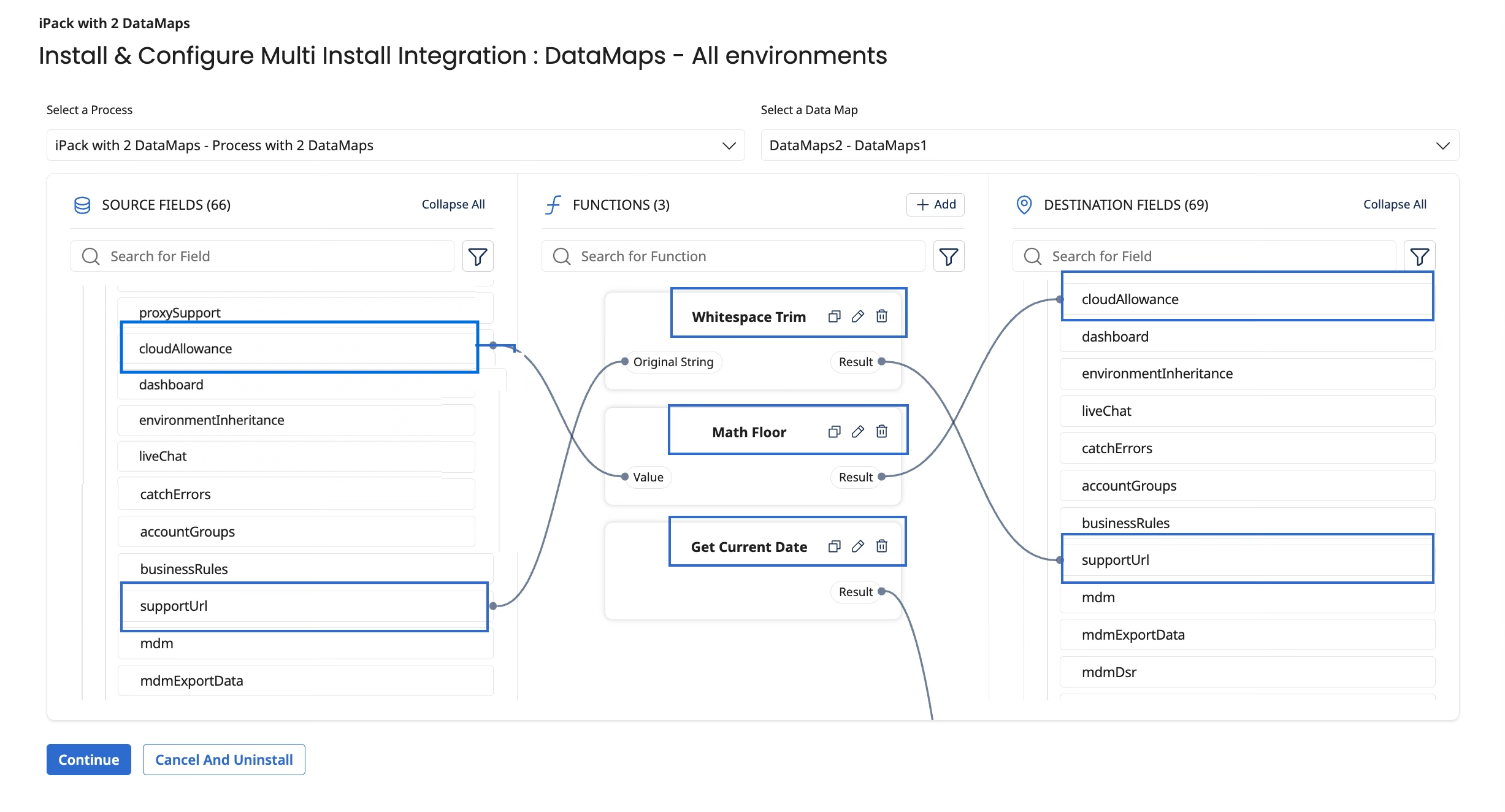
- To directly map a source field to a destination, drag the source field to the destination field.
- To transform one or more source fields to a destination field, using a String transformation function:
- Click Add under the FUNCTIONS section. The Add a Function page opens.
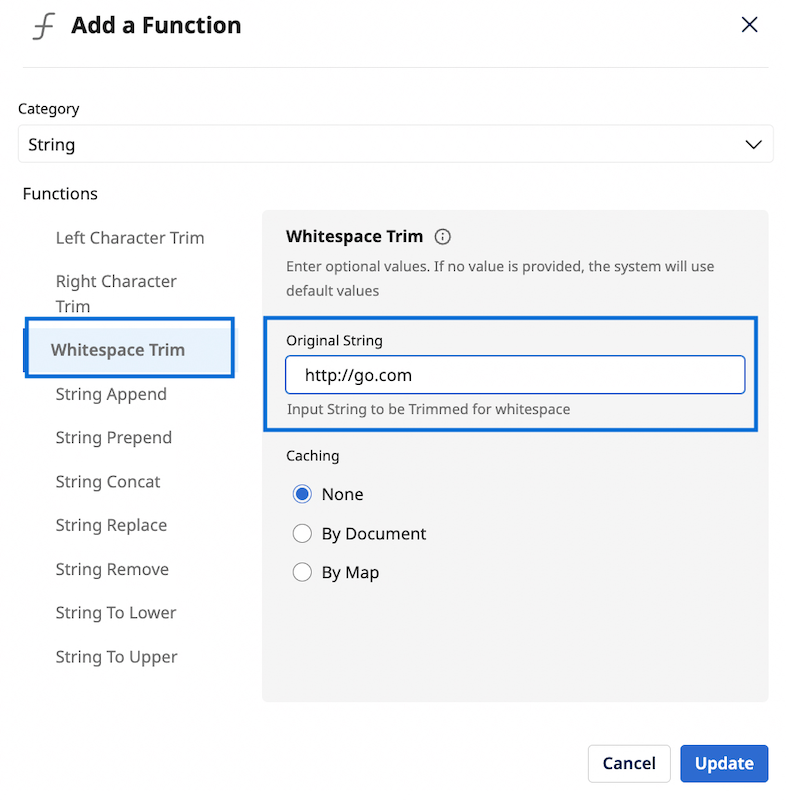
- Select String for Category.
- Select a String Function, for example, Whitespace Trim.
- Provide the Original String that needs to be transformed and click Add.
- After adding a function, drag a source field to the input field of the function created in step 4. Similarly, drag the output field to the destination field.
- Repeat steps 1 to 6 to add transformation functions for Numeric or Date data types.
- Click Add under the FUNCTIONS section. The Add a Function page opens.
- Click Continue on the installation wizard to complete the process.
note
- You can directly map a source field to a destination field without applying any function.
- To undo a mapping, click the blue dot on the destination field.
After configuring all environments, click Done to complete the installation. If you selected different configurations during installation, configure the properties for other environments. The installation will proceed with all configured extensions. A success message will appear if the installation is successful.